IPTV Player Remote Control Checklist Before You Buy
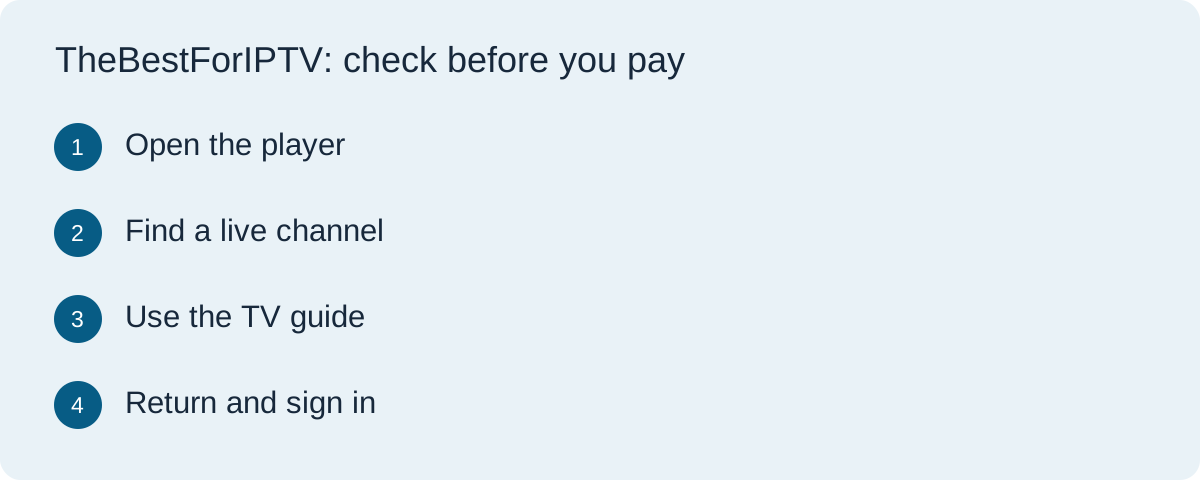
A player may advertise thousands of channels yet feel frustrating from the sofa. A household member should be able to find a programme, recover from a wrong button and return to live TV without learning a hidden gesture. The app, streaming device and content subscription are separate parts of this decision. A service can be suitable for your viewing needs while its suggested player is awkward on your particular television.
Start with the actual remote and screen
Write down the make and model of your TV or streaming device and the player app you intend to use. Some remotes have directional buttons, a Select button, Back and Home; others add number keys, voice controls or a dedicated guide button. Open the player on the device you will use every day. Do not assume a phone screenshot proves the same controls work on a TV. If setup requires sideloading or a separate paid app licence, include that in the buying decision.
For device-specific examples, Google's Google TV help describes using Select and Back to arrange apps, while Amazon's Fire TV VoiceView guide explains directional and Select-button navigation on its own platform. These references illustrate the device controls; they do not certify any third-party IPTV player.
Run a five-minute navigation exercise
Use a timer only to keep the exercise focused, not as a performance score. Begin from the device home screen. Open the player, locate one known live channel by name, open its guide entry and return to the channel list. Next, find a second programme without using search. Then press Back once and notice whether it takes you to the previous list, closes the player, or opens another menu. If an action is unclear, note the exact screen where you became stuck.
Repeat the exercise with someone else in the home if more than one person will use the television. A child, older relative or guest may have a different tolerance for small type, multi-step menus or repeated credential entry. Do not describe a player as universally easy because one person learned it quickly.
Check the TV guide as a remote task
The guide should let you move between nearby channels and times without losing your place. Check whether the programme title fits on screen, whether the current channel remains visible, and whether the highlight is obvious. If the guide is empty, that may be a data or account issue rather than a remote-control issue. Our live versus on-demand guide helps decide whether the guide is central to your household's viewing.
Try the controls for captions, audio language, favourites and catch-up only if you expect to use them. Confirm the actual feature exists in the offered plan. A button in an app does not prove the provider supplies that content or permits replay on every channel.
Try login and recovery before committing
Entering a long URL or password with an on-screen keyboard can be the most difficult part of the experience. Ask whether the player supports a trusted code or QR login, a device-specific app, or secure text entry from your phone. Verify the sign-in route on the seller's own instructions. Never share a password or one-time code in a public comment, and avoid a QR code that sends you to a domain you do not recognize.
After setup, sign out only if you know how to sign back in. Check whether the player restores favourites or requires a new configuration after an update. If the provider's support instructions mention a player that has changed its menu labels, ask for current steps for your device model.
Accessibility and shared-household checks
Look for readable contrast, a visible focus indicator, legible captions and controls that do not disappear too quickly. If someone needs a screen reader, verify that the player works with the device's accessibility feature rather than assuming the device setting applies inside every app. Google documents Google TV accessibility options, but notes that caption settings may not apply to every app. Test the exact app and programme.
For a household with two televisions, repeat the same steps on the second device and check the subscription's simultaneous-stream allowance. Installing an app on two screens does not itself grant two concurrent streams. Our Fire TV versus Android TV guide covers the separate hardware choice.
Use a short decision record
| Task | What to note |
|---|---|
| Open a channel | Buttons used, delay and any confusing menu |
| Use the guide | Readable text, obvious focus and easy return |
| Sign in | Approved method and whether another app is needed |
| Accessibility | Captions, audio and screen-reader behaviour you require |
| Second screen | Device setup and permitted concurrent streams |
Compare this record with the plan's current checkout total, renewal date, cancellation route and player licence cost. If the trial does not include the features you need, ask the seller what the paid plan adds. See our service comparison framework for the rest of the purchase decision. For a commercially connected provider, visit TereaTV to check its current plans and supported devices; this link is promotional, and we have not tested its player against every remote.
Questions buyers ask
Does every IPTV player work well with a TV remote?
No. Navigation and focus handling vary by app and device. Test the player with your exact remote before you commit to a long plan.
Can a phone replace an awkward remote?
Some TV platforms provide phone-based remote or text entry, but app support varies. A phone workaround may be convenient; it should not be assumed to fix every in-app control.
Does installing the same app on two TVs permit two streams?
No. Device installation and the content plan's simultaneous-stream allowance are separate. Check both before paying for a second screen.